App Store In-App Events & Google Play Promotional Content: The 2026 ASO Guide
By Sagar Joshi
Published · Last updated
App Store in-app events and Google Play promotional content are the most underused discovery surfaces in ASO. Most teams spend weeks polishing screenshots and keywords. Then the busiest months of the year arrive, and their listing looks exactly as it did in July.
Both stores give you a second, time-boxed set of creatives: an event card with its own media, name, description and deep link. It can show up on your product page, in search, on the Today, Games and Apps tabs, and in Google Play’s Spotlight. It can also go out as a “notify me” push to people who opted in.
This guide covers how in-app events work on both stores in 2026, the exact specs and character limits, the scheduling windows that catch teams out, what makes a good event, and a ready-to-use holiday playbook. Every limit below comes from Apple’s and Google’s own documentation, linked inline.
What Are In-App Events (and Why They Matter for ASO)?
An in-app event is a timely happening inside your app, such as a challenge, a live stream, a new season or a major content drop, that the store promotes as a standalone card. Apple introduced in-app events with iOS 15. Google’s counterpart, now called promotional content in Play Console, was previously known as LiveOps.
Unlike your screenshots or promotional text, an event is reviewed independently of your app binary. You can ship one without a new app version.
Why this matters for App Store Optimization:
- More surfaces. Events can appear in places your standard listing never reaches, such as editorial and personalized slots, event search, and Google Play’s homepage when featured.
- A second creative in search. On the App Store, people who already have your app may see your event card in search results instead of your screenshots.
- Re-engagement. Both stores let you aim events at lapsed or churned users. Retention and engagement are behavioural signals the stores watch closely (see semantic intent and behavioral signals in ASO).
- Measurable. Apple’s App Analytics reports event impressions, details page views, app opens, notification opt-ins and downloads attributed to the event.
Adoption is high among top games and still low among apps, which is your opening. AppTweak’s 2026 ASO trends and benchmarks report found that 51% of the top 1,000 US App Store games ran more than five in-app events in 2025, up from 46% the year before. On Google Play, 51% of top games used promotional content more than five times, against 34% of apps (third-party data, so treat it as directional).
Where In-App Events and Promotional Content Appear
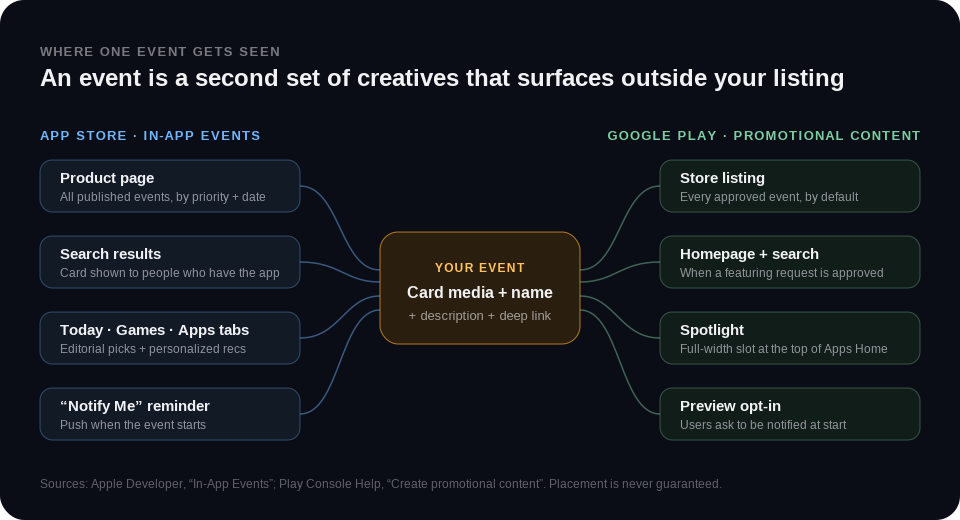
One event, many surfaces. Placement beyond your own listing is never guaranteed, but it is only possible if you publish events.
App Store discovery surfaces
According to Apple’s in-app events documentation, events can appear:
- On your product page: all currently published events, sorted by start time, with high-priority events ahead of normal ones.
- In search results: people who have your app can see the event card. People who don’t usually see your screenshots instead. Users can also search for events directly.
- On the Today, Games and Apps tabs: through editorial selections and personalized recommendations.
Users can tap Notify Me to get a push when the event starts, share the event, or download the app straight from the card. Once installed, the button changes to Open and deep-links into the event.
Google Play discovery surfaces
Per Play Console Help, every approved promotion shows on your store listing by default. If you request featuring and Google approves it, the event can also appear in high-visibility areas, “including the homepage and search results”. Eligible events can run in the Spotlight format, a full-width placement at the top of Apps Home. Preview events let users opt in to a notification when the event starts.
App Store In-App Events vs Google Play Promotional Content
The two features solve the same problem with different rules. Here is the side-by-side:
| App Store in-app events | Google Play promotional content | |
|---|---|---|
| Who can use it | Any app or game | All games; apps that meet the Premium growth tools criteria |
| Types / badges | Challenge, Competition, Live Event, Major Update, New Season, Premiere, Special Event | Offer, Time-limited event, Major update (pre-registration is a major-update subtype) |
| Title field | Event name ≤ 30 characters | Tagline ≤ 80 characters (offer value in the first 40) |
| Short copy | Short description ≤ 50 characters | n/a |
| Long copy | Long description ≤ 120 characters | Description ≤ 500 characters (100+ recommended) |
| Main artwork | 16:9 card, 1920×1080 min / 3840×2160 max, image or video | 16:9 primary image, 1920×1080, JPG or 24-bit PNG |
| Second artwork | 9:16 details page media, 1080×1920 min | Square image (required); optional Lottie animation and YouTube video |
| Text in artwork | Avoid text and logos | Not allowed (collab logos excepted) |
| Max duration | 31 days (min 15 minutes) | 4 weeks; time-limited events end within 30 days; major updates 28 days; pre-registration 1 week |
| Early promotion | Publish up to 14 days before start | Preview up to 14 days before start (not for offers) |
| How many at once | 10 published, 15 approved | No hard cap stated; Google advises against submitting more than one item at the same time; featuring requests limited per quarter |
| Review | Must be approved; no new binary needed | Up to 4 days; no edits after submission |
| Targeting | Purpose: all users, new users, active users, lapsed users (used for recommendations) | Countries plus audiences: everyone, potential users, churned, lapsed (28 days), buyer states, custom |
Sources: Apple In-App Events, App Store Connect Help: overview of in-app events, Play Console Help: create promotional content, and Play promotional content quality guidelines.
Watch the limits. A 30-character event name and a 50-character short description are tighter than your App Store subtitle. Draft them in a character counter before you open App Store Connect.
In-App Event Card Design: Specs and Best Practices
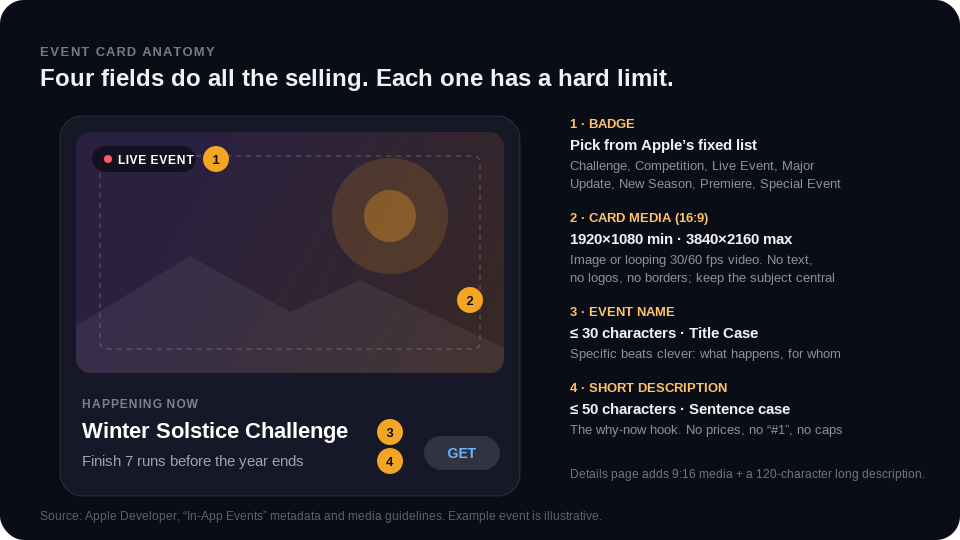
The event card is a tiny ad. Four fields carry the whole message, and each one has a hard limit.
Event card media (16:9) and details page media (9:16)
- Card: 16:9, minimum 1920×1080 px, maximum 3840×2160 px. Use a
.jpg/.pngimage or a.mov/.mp4video at 30 or 60 fps. - Details page: 9:16, minimum 1080×1920 px, maximum 2160×3840 px.
- Videos autoplay and loop, so design a seamless loop.
- No borders or gradients. Apple applies crops and gradients automatically, so keep the subject centred, away from the edges.
- No text or logos in the media, especially not the event or app name. The name already sits right under the artwork.
Google Play’s rules are similar. The primary image is 16:9 at 1920×1080 with no text, and Google defines a safe zone: keep key content clear of the bottom 20%, the sides 10% and the top 15%. If you already design a Play Store feature graphic, you have the right canvas and habits. Event art is the feature graphic’s busier cousin.
Writing event names and descriptions that convert
- Name the event, not the app. “Winter Solstice Challenge” beats “MyApp Holiday Fun”.
- Use title case for the name and sentence case for descriptions. Apple asks for this explicitly.
- Put the hook in the short description. In 50 characters, say why now: “Finish 7 runs before the year ends.”
- No prices, “#1”, “best”, all caps or “!!!”. Apple’s guidelines reject unverifiable claims and specific prices in event metadata. Google bans generic taglines like a bare “Holiday sale”, rank or award references, and call-to-action phrasing such as “press the button below”.
- Lead with the value on Google Play. For offers, the discount or reward belongs in the first 40 characters of the tagline.
These are the same principles behind good screenshot copy, squeezed into fewer characters. If you want first drafts within the limits, Nakxi’s AI App Store copy generator can produce several variants to choose from.
Choosing the right in-app event badge
The badge tells shoppers what kind of event this is. Pick the most honest one:
| Badge | Use it for | Example |
|---|---|---|
| Challenge | Goal-based activity with a finish line | “Complete 10 workouts in December” |
| Competition | Users compete against each other for a ranking or prize | Weekend leaderboard tournament |
| Live Event | Something happening in real time | Live class, stream or concert |
| Major Update | Significant new features or content | Redesigned editor, new game mode |
| New Season | New season of content or a battle pass | “Season 4: Frostfall” |
| Premiere | First-time availability of content | New series, album or course drop |
| Special Event | Time-limited content that fits none of the above | Holiday-themed collection |
Scheduling Windows: Plan In-App Events Backwards
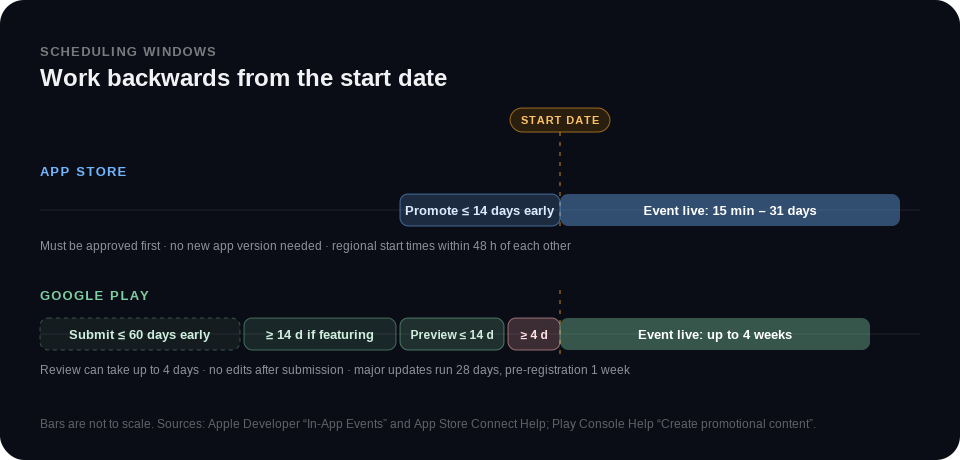
Most failed launches are timing problems. Start from the start date and work backwards.
App Store. An event can be promoted up to 14 days before it starts and can run from 15 minutes to 31 days. It must be approved before it is visible. If you set different start times by region, all of them must fall within 48 hours of each other (App Store Connect Help).
Google Play. You can submit up to 60 days ahead. Review can take up to four days, and featuring requests need at least 14 days of lead time. Submitted content cannot be edited, and start dates across country groups must fall in the same calendar quarter. Featuring requests are rationed per quarter, so don’t spend them on minor events.
A practical rule for both stores: lock creative and copy three weeks before the start date. That leaves room for one rejection-and-fix cycle and the full 14-day pre-promotion window, which is where opt-ins build up.
In-App Event Ideas: What Works and What Gets Rejected
Apple’s guidance is clear. Good events are challenges, competitions and special content launches. Poor candidates are repetitive daily tasks or rewards, price promotions with no new content, and general awareness campaigns.
Event ideas by app category:
- Fitness and health: a 7-day “new year reset” challenge, live coach-led classes, a step competition with friends.
- Productivity and finance: a “year in review” report feature (Major Update), a January budgeting challenge, a live Q&A on a new workflow.
- Education: a new course premiere, an exam-season sprint challenge, a live workshop.
- Photo, video and creative tools: a themed template pack (Special Event), a community edit challenge, a new effects season.
- Games: new season, limited-time mode, holiday crossover, tournament.
On Google Play, Offers are a legitimate type, unlike on Apple. They need a discount or added value of 10% or more, must be redeemable in the Android app, and can’t be evergreen “everyday low price” deals (quality guidelines).
A Holiday In-App Events Playbook for December and January
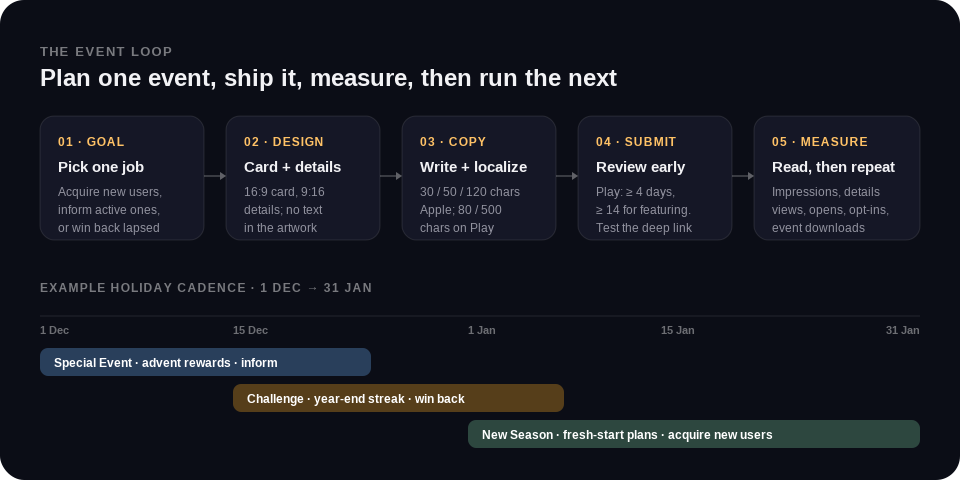
Run events as a loop, not a one-off. Overlapping events with different goals keep your listing fresh all season.
The year-end window is the best time to start because store traffic and intent peak. Follow this loop:
- Pick one goal per event. Apple’s purpose setting (attract new users, keep active users informed, bring back lapsed users) and Google’s audience targeting both reward focus.
- Design the card and details media together. Build the 16:9 and 9:16 versions from the same art direction as your listing so the event feels native. Nakxi’s App Store screenshot generator and Play Store screenshot generator keep brand colours, type and device frames consistent across listing and event creatives.
- Write and localize the copy. Events fall back to your primary language when a locale is missing. On Google Play, an event only shows to users whose device language matches a description you provided. Localizing pays off directly here; see our App Store localization guide.
- Submit early and test the deep link. Use a universal link (Apple) or a deep link to the exact event screen. If the event hasn’t started yet, send people to a “starts soon” landing screen.
- Measure, then run the next one. Compare event-attributed downloads and opens against the same period without an event, then iterate on the media and name.
An example cadence for an app (not a game):
- 1–24 December. Special Event, “Advent rewards”. Goal: keep active users engaged daily.
- 15 December – 7 January. Challenge, “Year-end streak”. Goal: bring lapsed users back before the new year.
- 1–31 January. New Season or Major Update, “Fresh-start plans”. Goal: acquire new users riding new-year intent.
Each event stays within Apple’s 31-day maximum. No more than two run at once, far below the 10-published limit. App Review can also be busier around the holidays, so check Apple Developer News for this year’s holiday schedule and get December events approved early.
Pair events with Custom Product Pages. If you run Apple Ads during the season, send that traffic to a Custom Product Page whose screenshots match the event theme, so the ad, event card and listing tell one story.
Measuring In-App Event Performance
In App Store Connect, App Analytics lets you filter by event and see:
- Event impressions and details page views (is the card attracting attention?)
- App opens from the event (is the deep link working, and do existing users care?)
- Notification opt-ins (is the 14-day pre-promotion working?)
- Downloads and re-downloads attributed to the event (is it acquiring new or returning users?)
Google Play reports promotional content performance in Play Console as well; see Evaluate your promotional content performance.
A simple test plan: keep the event idea the same and change one variable per run, either the card media, the name or the badge. Low impressions point to a weak card or a weak name. Many detail views but few opens or downloads point to a weak long description or offer.
Events affect store conversion, so check the rest of your listing too. A free ASO score check will flag weak screenshots or metadata that undercut event traffic once it lands on your product page.
Common In-App Event Mistakes to Avoid
- Text baked into the artwork. It duplicates the name and gets cropped. Both stores discourage or ban it.
- Events that are only discounts (on Apple). A price promotion with no new content is a poor candidate, and Apple’s guidelines reject specific prices in event metadata.
- Daily login rewards dressed up as events. Apple names repetitive daily tasks as a bad fit.
- Last-minute submissions. On Google Play you can’t edit after submitting, and featuring needs 14 days.
- Broken or generic deep links. “Open” should land on the event, not on your home screen.
- One locale only. Untranslated events reach fewer people on Google Play and fall back to your primary language on Apple.
- Off-brand art. If the event card looks nothing like your screenshots and icon, users won’t connect the two.
Conclusion: Make In-App Events Part of Your ASO Calendar
App Store in-app events and Google Play promotional content cost nothing beyond design time, need no new binary, and put your app on surfaces your listing alone never reaches. Treat them as a recurring part of your ASO calendar. Pick a goal, design clean text-free art, write tight copy within the limits, submit early, and measure.
Start with one event this holiday season. Then make the loop a monthly habit.
Ready to design your event creatives and the listing they lead to? Build on-brand screenshots, feature graphics and event-ready artwork in one place with Nakxi’s design studio, localize them with App Store localization, and see the plans that fit your team.