How to Create Professional Play Store Screenshots 2026
When users visit your Google Play listing, your screenshots are usually the first thing they notice. Before reading descriptions or reviews, people quickly scan visuals to decide whether your app is worth installing. That’s why having a strong Play Store screenshot design strategy is essential.
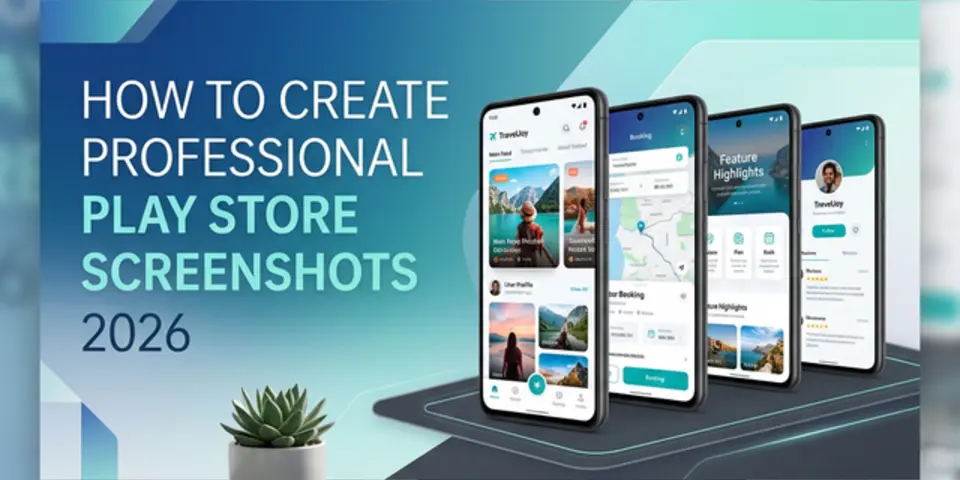
The premium design shown above perfectly highlights a professional Play Store listing. In this guide, you’ll learn everything about Google Play screenshots—from official platform requirements to modern design trends, recommended sizes, and proven ASO strategies to drastically improve your app downloads.
Why Play Store Screenshots Matter
Google Play screenshots directly influence conversion rate. Even with good ASO keywords, weak visuals can reduce installs.
Professional screenshots help you:
- Increase app downloads
- Improve user trust
- Explain features quickly
- Support ASO performance
- Make your app look premium
Think of screenshots as your visual sales pitch.
Step 1 — Choose the Right Design Type
Before designing, you need to decide what you want to create. Most modern tools offer options like:
- App Store screenshots
- Play Store screenshots
- Custom design layouts
When designing for Android, always select the Play Store screenshot option so dimensions and layouts match Google’s requirements. This ensures:
- Correct resolution
- Better preview experience
- Proper app listing display
Step 2 — Select Correct Screenshot Size (Most Important)
Choosing the correct layout is the foundation of any good listing. Before looking at recommended sizes, here are Google’s strict requirements:
Official Google Play Requirements
- Format: JPEG or 24-bit PNG (no alpha channel).
- Minimum dimension: 320 px.
- Maximum dimension: 3840 px.
- Proportions: The maximum dimension of a screenshot can’t be more than twice as long as its minimum dimension (up to a 2:1 aspect ratio).
- Max file size: 8 MB per image.
- Maximum screenshots: Up to 8 screenshots per supported device type.
Recommended Play Store Screenshot Sizes
While Google supports a range of dimensions, sticking to standard smartphone ratios will ensure the best look across modern Android devices.
| Device | Recommended Size | Orientation |
|---|---|---|
| Phone | 1080 × 1920 | Portrait |
| Phone Landscape | 1920 × 1080 | Landscape |
| 7” Tablet | 1200 × 1920 | Portrait |
| 10” Tablet | 1600 × 2560 | Portrait |
| Tablet Landscape | 2560 × 1600 | Landscape |
Choosing the right size ensures your screenshots look sharp and professional on all devices.
Step 3 — Start with Portrait Layout (Best for Conversion)
Most successful Play Store listings use 9:16 portrait screenshots because they take more space on mobile screens.
Benefits:
- Better visibility
- Easier storytelling
- More attention from users
- Higher conversion potential
Landscape screenshots can work for games or media apps, but portrait is generally safer for most app categories.
Step 4 — Follow Modern Play Store Screenshot Design Trends
In 2026, screenshot design is moving towards simplicity and clarity.
Trending Design Style:
- Minimal backgrounds
- Bold headlines
- Large UI previews
- Consistent branding
- Clean typography
Avoid over-designing or using too many colors. Premium designs look simple and intentional.
Step 5 — Use Benefit-Focused Text
Many developers describe features instead of outcomes.
Instead of: ❌ “Advanced Analytics Dashboard”
Write: ✔ “Track Performance Instantly”
Your screenshots should answer: “How does this app help me?”
This strategy improves conversion rates significantly.
Step 6 — Add Device Frames for Premium Feel
Modern app screenshot generator tools allow you to place screenshots inside realistic Android device mockups.
Why it works:
- Adds depth and professionalism
- Makes UI easier to understand
- Gives a polished brand appearance
Device mockups are a major trend in high-performing app listings.
Step 7 — Keep Typography Clear and Consistent
Text readability is critical because users scroll fast.
Best typography practices:
- Use bold headlines
- Keep text short
- Maintain spacing
- Use high contrast colors
- Avoid multiple fonts
Consistency across all screenshots builds trust.
Step 8 — Use Storytelling Layout
The best play store screenshot creator strategy is to tell a visual story.
Example Flow:
| Screenshot | Purpose |
|---|---|
| 1 | Core value proposition |
| 2 | Main feature |
| 3 | Problem solved |
| 4 | Key benefit |
| 5 | Social proof or trust |
| 6 | Call to action |
This structure guides users naturally through your app experience.
Step 9 — Optimize for ASO Screenshots
Screenshots are not direct ranking factors, but they strongly impact ASO screenshots performance through conversion rate.
Good ASO visuals:
- Use benefit-focused messaging
- Show real app usage
- Maintain consistent branding
- Keep design mobile-friendly
Better conversion signals can indirectly improve visibility in Google Play.
Common Play Store Screenshot Mistakes
Avoid these if you want professional results:
| Mistake | Result |
|---|---|
| Too much text | Cluttered design |
| Small UI previews | Hard to understand |
| Random colors | Unprofessional look |
| No clear message | Low conversion |
| Different styles each screen | Weak branding |
Premium screenshot design is about clarity, not complexity.
Step 10 — Use Templates for Faster Results
Professional creators rarely start from scratch. Using app store screenshot templates saves time and maintains consistency.
Advantages:
- Faster workflow
- Better alignment
- Proven layouts
- Professional presentation
Templates help even non-designers create premium visuals quickly.
Frequently Asked Questions (FAQs)
What is the best Play Store screenshot size?
Google Play supports both portrait and landscape screenshots. Common recommended sizes are 1080 × 1920 px (portrait) and 1920 × 1080 px (landscape). Choose the format that best fits your app experience.
Do Play Store screenshots help with ASO?
Yes. Play Store screenshots improve conversion rates by helping users understand your app quickly. Higher conversions can positively support overall ASO performance.
Should I use portrait or landscape screenshots for Google Play?
Both portrait and landscape screenshots are supported. Portrait layouts are commonly used for productivity and utility apps, while landscape works well for games, media, and video-focused apps.
Can I use the same screenshots for App Store and Play Store?
Yes, but screenshots should be resized and optimized according to each platform’s dimension requirements to ensure the best visual quality.
How many screenshots can I upload to Google Play?
You must provide a minimum of two screenshots and can upload a maximum of 8 screenshots per supported device type.
What tool can I use to create professional Play Store screenshots?
You can use an app screenshot generator like Nakxi to create professional Play Store screenshots using templates, device mockups, and easy drag-and-drop editing.
Final Thoughts
Creating high-converting Play Store visuals is a combination of correct sizes, clean design, and strong messaging. Using proper dimensions, device mockups, and strategic layouts is exactly how modern app teams approach screenshot creation.
If you want better results:
- Choose correct Play Store dimensions
- Use portrait layouts
- Focus on benefits
- Maintain consistent branding
- Follow modern design trends
Professional screenshots can drastically improve your app’s first impression and increase downloads.
Create Professional Play Store Screenshots with Nakxi today. Design modern Android screenshots using Nakxi, an advanced mobile app screenshot generator built for developers, marketers, and ASO professionals.